Pre-migration Considerations
6 minute read
Permissions Management (RBAC) deprecation timeline
The legacy Permissions Management (RBAC) system will be deprecated on October 31, 2026. RudderStack recommends completing your migration before this date.
Before you begin migration to the new Access Management system, it is important to understand how your current permissions will map to the new system and what changes to expect. This will help you make informed decisions during the migration process, particularly when choosing your import strategy.
Migration scope
Migration to the new Access Management system happens at the organization level, not at the workspace level. This means:
- When you migrate, the migration applies to all workspaces within your organization
- You cannot migrate individual workspaces separately
- All members and Service Access Tokens in all workspaces in your organization are migrated to the new Access Management system together
If your organization has multiple workspaces, make sure to check and fine-tune each workspace’s baseline policy before deploying the new Access Management system.
Roles to member permissions
After migration, the permissions a user had in the legacy Permissions Management (RBAC) system (Viewer, Connections Editor, Connections Admin, etc.) will be mapped to their individual Member Workspace Policy.
This means that instead of assigning specific roles to members, each member will have their previous permissions preserved as a customized workspace policy applicable for them.
This approach gives Admins more granular control over individual member permissions while maintaining the same access levels they had before.
Baseline Workspace Policy
New members added to a workspace after migration will inherit its Baseline Workspace Policy by default.
This behavior is different from the legacy RBAC system where new members inherited permissions based on their assigned role.
After migration, you will need to explicitly configure the Baseline Workspace Policy to grant the default permissions you want new members to have when they join your workspace.
Also, note that unless configured by Admins, the baseline workspace policy contains view-only permissions for all resources with restricted access to PII.
Granular resource-level permissions
Admins will be able to grant Edit, Connect, and Create & Delete permissions independently on specific resources.
This provides more flexibility than the legacy RBAC system, where permissions were bundled into roles. You can now configure permissions at a more granular level, allowing you to grant specific actions on specific resources without giving broader access.
Import strategy decision
During migration, you will need to choose an import strategy that determines how your existing permissions are translated into the new system:
| Strategy | Implications | Ideal if |
|---|---|---|
| Start fresh | RudderStack imports members with baseline, view-only permissions. | You want to start with a blank slate and build permissions policies from the ground up. |
| Use existing policies | RudderStack imports members with their existing permissions. Current user roles will be mirrored into the individual user’s Member Workspace Policy. | You want to retain the existing user permissions as is, without having to modify them later. |
Service Access Tokens will be automatically imported with their current permissions in both import strategies.
Data Privacy permissions
In the legacy Permissions Management (RBAC) system, the Data Privacy setting in Settings > Workspace > Data Management controls who can view PII in Live Events and debug logs across various resources.
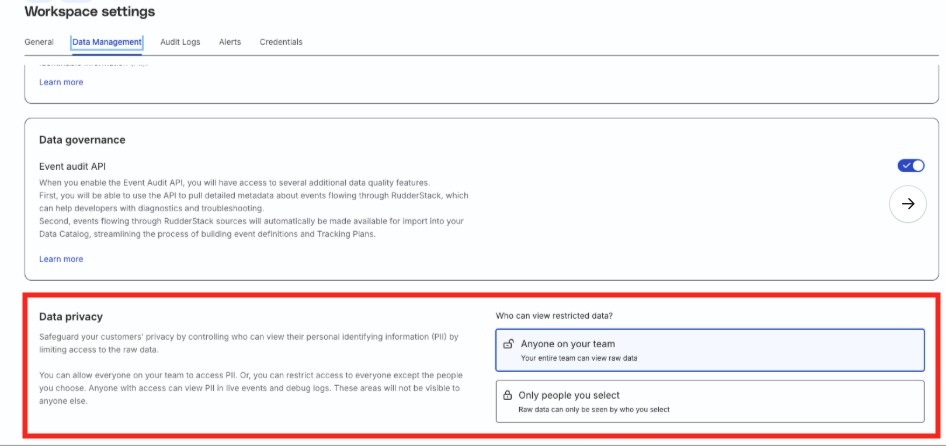
Under Who can view restricted data?, you choose one of two options:
| Legacy setting | Behavior |
|---|---|
| Anyone on your team | All workspace members can view PII in live events and debug logs. |
| Only people you select | Only members on the allowlist can view PII in live events and debug logs. |
During import, Data Privacy permissions follow the same import strategy as other member permissions:
- With Import members (Start fresh), member PII permissions from the legacy system are not migrated. Members start with baseline access and you configure required PII permissions in staging.
- With Import members with policies (Use existing policies), RudderStack carries forward member PII permissions as part of the migrated workspace policies.
Allowlist members
If a workspace uses Only people you select, members on the Data Privacy allowlist are migrated with the following permissions in their Member Workspace Policy:
| Resource | Permission | Resource ID |
|---|---|---|
| Event Stream Sources | Live Events PII | All resources |
| Destination | Live Events PII | All resources |
| Destination | Failure samples PII | All resources |
| Transformation | Live Events PII | All resources |
| Transformation | Failure samples PII | All resources |
In the policy editor of the new Access Management system, they appear as Event Stream Source Live Events, Destination Live Events, Destination Failure Samples, Transformation Live Events, and Transformation Failure Samples under the PII permissions section.
Members not on the allowlist do not receive these permissions through the Data Privacy allowlist mapping.
Important considerations
- Review the Data Privacy setting for each workspace before import. Organizations with multiple workspaces may use different settings per workspace.
- If you choose Import members with policies, verify allowlisted members receive the expected PII permissions in staging before deployment.
- If you choose Import members (Start fresh), no legacy Data Privacy permissions carry over. You will need to configure PII access in your Baseline Workspace Policy, Group Workspace Policies, and Member Workspace Policies before deploying the new system.
- The Data Privacy setting controls access to PII in Live Events and debug logs. Other PII permissions — for example, Tracking Plan violations or Reverse ETL failure samples — come from legacy role permissions and are migrated separately when you choose Import members with policies.
- If a workspace uses Anyone on your team, member PII access during import comes from legacy role permissions rather than the Data Privacy allowlist.
Migration process
During migration, the new Access Management system is in Preview Mode — a staging area where you configure and preview policies before deployment.
Note that:
- While Access Management is in Preview Mode, Admins can add members and configure policies in the new system without affecting permissions in the current Permissions Management (RBAC) system.
- Legacy RBAC permissions remain in effect until you deploy. For ongoing tasks, continue granting access through the legacy RBAC system. Update policies in staging in parallel so your deployed configuration matches the access you intend to enforce.
- When you deploy the new Access Management system, the legacy RBAC system is removed from your workspace and all policies you configured in staging take effect.
- In Preview Mode, members invited in the Access Management system will not get workspace access until you deploy. To invite users immediately, use the Invite users flow in the RBAC system.
See Migration Steps for step-by-step instructions.
See more
- How Migration Works: Learn about the technical process of migration
- Key Concepts: Understand the core concepts of Access Management
