
Personal Access Tokens

Learn about Personal Access Tokens and how they enable individual users to authenticate and consume RudderStack APIs.
Available Plans
  • starter
  • growth
  • enterprise

warning

Use Personal Access Tokens for development or testing purposes only.

For production use cases, RudderStack recommends using the following over a Personal Access Token:

This guide explains the concept of Personal Access Tokens in RudderStack’s Access Management system. It also describes the steps to generate a Personal Access Token and all the operations associated with it.

Overview

To consume the public RudderStack APIs, you need a Personal Access Token (PAT). This access token is associated with an individual’s RudderStack account.

Permissions

You can create and use Personal Access Tokens with the following scopes:

Token scope
Description
Read-OnlyAccess tokens will have read-only permissions.
Read-WriteAccess tokens will have both read-only and read-write permissions of the user.

info
If a user having read-only permissions creates a Read-Write token, then the token will still have read-only permissions.
Admin
warning
Creation of new Personal Access Tokens with Admin scope is deprecated. However, any existing Admin PATs will continue to work as before, even after migration.

Personal Access Tokens vs. Service Access Tokens

Personal Access Tokens (PAT)Service Access Tokens (SAT)
Tied to a specific user within a workspace.Not tied to an individual user.
Used for individual tasks and testing.Used for centralized, shared access and production use cases.
Any processes dependent on these tokens will break if the user is removed from the organization or a breaking change is made to their permissions.Exist at an organization or workspace level, ensuring continuity in essential workflows and pipelines using these tokens.

Generate Personal Access Token

  1. Log in to your RudderStack dashboard.
  2. Go to Settings > Your Profile and scroll down to Personal Access Tokens. Then, click Generate new token:
New Personal Access Token in RudderStack dashboard
  1. Enter the Token name, select the Workspace and the Scope from the respective dropdowns:
Personal Access Token name and scope
  1. Click Generate.
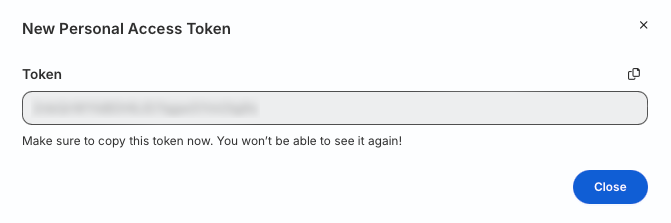
  2. Note the Personal Access Token value.
warning
Make sure to secure the generated token — the token value is not visible again once you close this window.
Personal Access Token details

Delete Personal Access Token

  1. Go to Settings > Your Profile and scroll down to Personal Access Tokens.
  2. Click the Delete option next to the token and confirm by clicking Yes, delete.

Migrate old Personal Access Tokens

After migration, Personal Access Tokens:

  • Inherit user permissions: Personal Access Tokens continue to inherit the permissions of the user who created them. Since user permissions are migrated to their Member Workspace Policy, Personal Access Tokens automatically reflect those permissions.
  • Maintain scope behavior: Personal Access Tokens created with Read-Only or Read-Write scopes continue to work as before, with their effective permissions determined by the user’s Individual Workspace Policy.

See the Migration Scenarios guide for detailed examples of how Personal Access Tokens are migrated to the new Access Management system.


Questions? We're here to help.

Join the RudderStack Slack community or email us for support