How to Migrate to New Access Management System
4 minute read
Permissions Management (RBAC) deprecation timeline
The legacy Permissions Management (RBAC) system will be deprecated on October 31, 2026. RudderStack recommends completing your migration before this date.
This guide explains how to migrate your existing roles and permissions from the legacy Permissions Management (RBAC) system to the new Access Management system.
Quickstart
Migration in 5 minutes
- Go to Settings > Access Management in your dashboard.
- Click Import and choose your import strategy (start fresh or use existing policies).
- Configure your Baseline Workspace Policy and create Groups for your teams.
- Review Member Workspace Policies and adjust as needed.
- Click Deploy to activate the new Access Management system.
Your existing RBAC permissions remain active until you deploy. You can reset and restart at any time before deployment.
Migration overview
The migration process involves:
- Importing your existing members (with or without their existing permissions) and Service Access Tokens into a staging area
- Configuring access policies for your workspace, groups, and members
- Deploying the changes to activate the new Access Management system
Prerequisites
- Review Pre-migration Considerations to understand how your current permissions map to the new system and what to expect after deployment.
- Confirm you have Admin access — only Admins can perform the migration.
1. Import members and Service Access Tokens
- Go to Settings > Access Management in your RudderStack dashboard.
- You will see a Migration Status banner — review the migration progress and timeline.
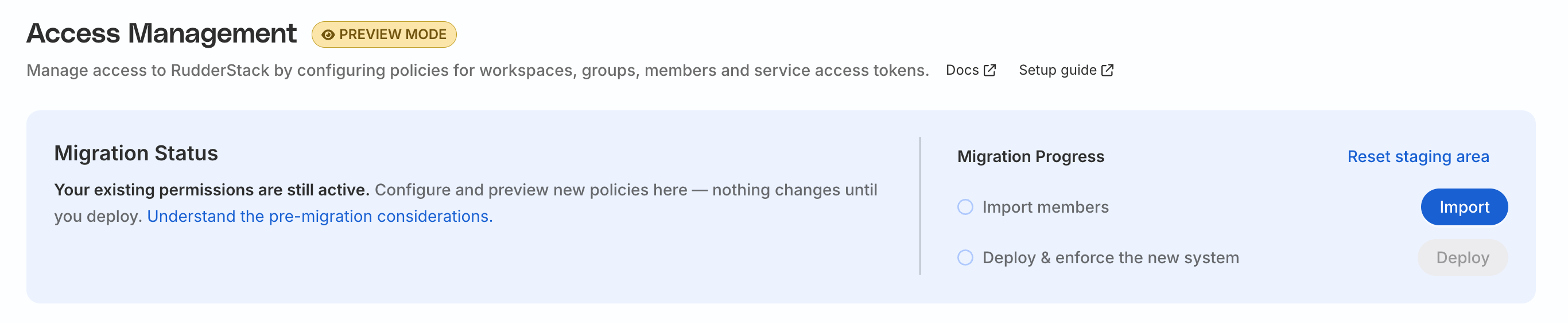
- In the Migration Progress section of the banner, click Import.
- Choose your import strategy.
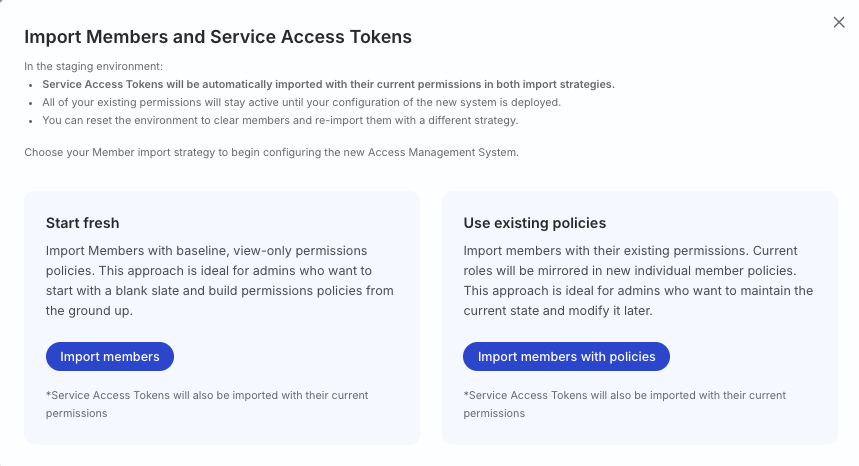
- Click Import members or Import members with policies to complete the import process.
Note that:
Service Access Tokens are automatically imported with their current permissions.
Data Privacy (PII) permissions follow the same import strategy:
- Import members: Data Privacy permissions from legacy member roles and allowlists are not preserved. You will need to review and configure PII permissions in the staging area before deploying the new Access Management system.
- Import members with policies: Existing Data Privacy permissions are imported as part of each member’s workspace policy mapping. Members on a workspace’s Data Privacy allowlist receive workspace-wide PII permissions for Event Stream Sources, Destinations, and Transformations.
See Pre-migration Considerations for guidance on how to handle Data Privacy permissions before migration.
2. Configure policies
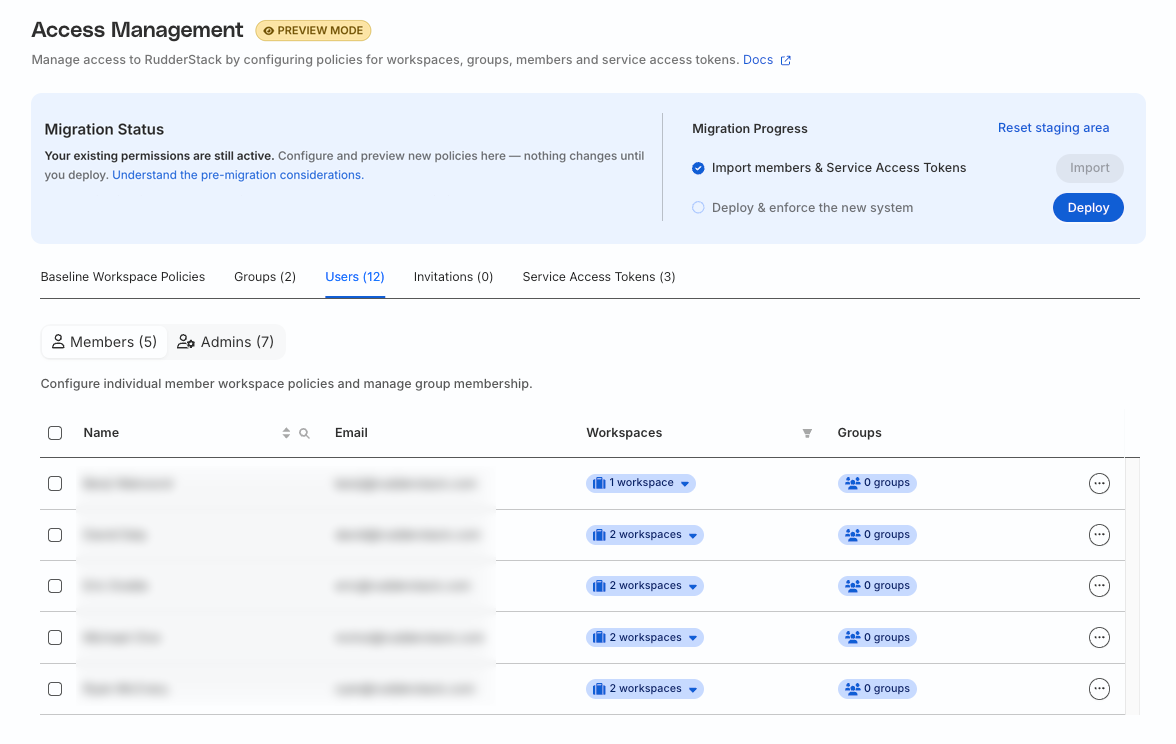
After importing members, you can review and adjust the imported policies before deploying them.
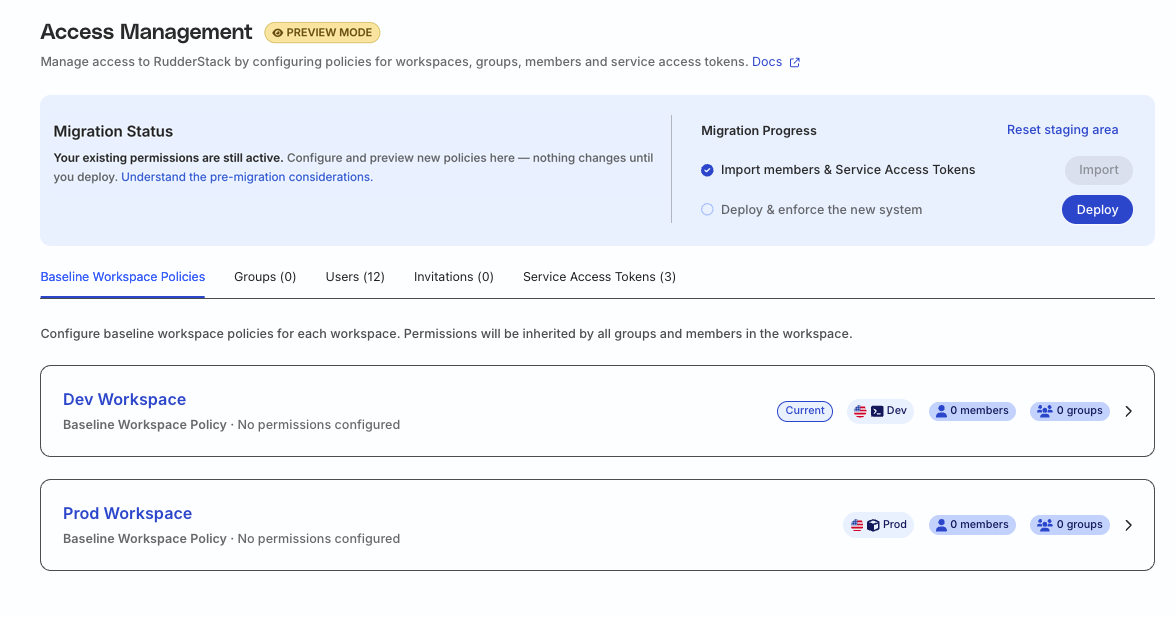
- Review and configure the Baseline Workspace Policy for your workspace.
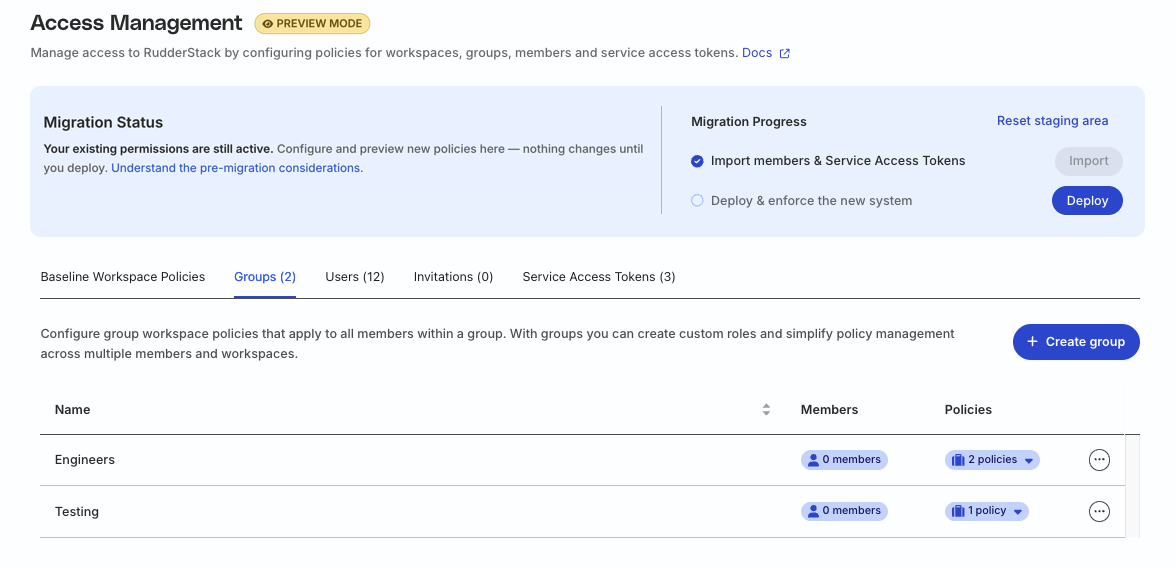
- Create new groups and configure their workspace policies with specific permission sets.
- Fine-tune users’ Member Workspace Policy as needed. See Role mapping reference for more information on how roles in the legacy RBAC system map to the new Access Management system.
3. Deploy and enforce the new system
The deployment is irreversible
Make sure you’ve reviewed and configured all permissions correctly before deploying. After deployment, the new Access Management system will be active and the legacy RBAC system will no longer be available.
- Review your staging area configuration to ensure all access policies are configured correctly.
- In the Migration Progress section, click Deploy.
- Confirm the deployment when prompted.
Once migration is complete, you will see the following banner:
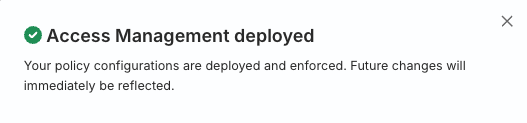
After migration, you can use the new Access Management system to change access policies — updates apply in the workspace immediately.
Manage permissions after migration
Once migration is complete, you can:
- Configure your Baseline Workspace Policy that automatically applies to all new members joining that workspace
- Create new groups and fine-tune their workspace policy with specific permission sets
- Fine-tune users’ Member Workspace Policy as needed
See the Policies Overview guide for more information.
Staging area
During migration, the new Access Management system is in Preview Mode — a staging area where you configure and preview policies before deployment. The dashboard shows a Preview Mode badge on the Access Management page while you are in staging.
In Preview Mode, you can:
- Review how your current permissions map to the new system
- Adjust policies without affecting permissions currently enforced in the Permissions Management (RBAC) system
Important considerations
- Until you deploy, your existing RBAC permissions remain in effect for all live access.
- In Preview Mode, new members invited through the Access Management system will not get workspace access until you deploy. To invite users immediately, use the Invite users flow in the RBAC system.
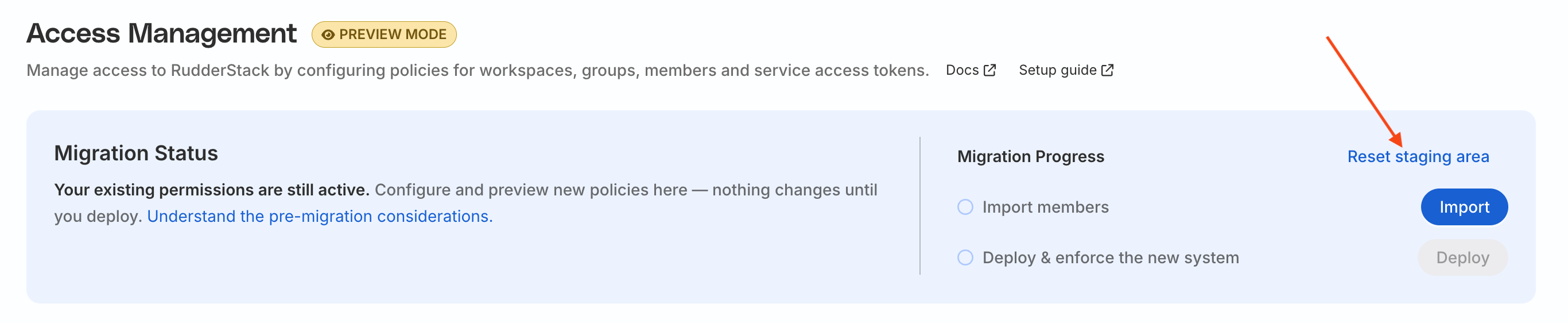
Click Reset staging area to clear all imported members and policy configurations and restart the migration process from scratch.
Troubleshooting
| Issue | Solution |
|---|---|
| Import fails or does not complete | Try resetting the staging area and import again |
| Deploy button is disabled | Make sure the import step has completed successfully |
| Permissions don’t match expectations |
|
See more
- How Migration Works: Learn about the technical process of migration and what happens after deployment
- Migration Scenarios: Understand how migration works in different scenarios
