

How to Migrate to New Access Management System

Step-by-step guide to migrate your existing roles and permissions to the new Access Management system.
Available Plans
  • starter
  • growth
  • enterprise

announcement

Self-serve migration availability

The self-serve migration feature for users on the legacy RBAC system is currently gated and will be generally available on March 16, 2026.

Contact RudderStack Support if you’d like to enable it for your organization in the meantime.

This guide explains how to migrate your existing roles and permissions from the legacy Permissions Management (RBAC) system to the new Access Management system.

Quickstart summary

success

Migration in 5 minutes

  1. Go to Settings > Access Management in your dashboard.
  2. Click Import and choose your import strategy (start fresh or use existing policies).
  3. Configure your Baseline Workspace Policy and create Groups for your teams.
  4. Review Member Workspace Policies and adjust as needed.
  5. Click Deploy to activate the new Access Management system.

Your existing permissions remain active until you deploy. You can reset and restart at any time before deployment.

Role mapping reference

The table below shows how roles in the legacy RBAC system map to the new Access Management system:

Legacy RBAC roleNew Access Management equivalentNotes
AdminOrganization Admin + Full workspace permissionsAdmins retain full control. Organization-level Admin role is separate from workspace permissions.
Read-WriteMember Workspace Policy with Edit, Connect, Create & Delete permissionsConfigure via Baseline Workspace Policy or individual Member Workspace Policy.
Read-OnlyMember Workspace Policy with View-only permissionsDefault for new members. Can be set via Baseline Workspace Policy.
Custom rolesGroup PoliciesCreate groups (Data Engineers, Marketers, etc.) with specific permission sets.
info
When you choose the Use existing policies import strategy, RudderStack automatically maps your current roles to individual Member Workspace Policies. You can then organize members into Groups for easier management.

Migration overview

The migration process involves:

warning
Your existing permissions will remain active until you deploy the new Access Management system.

Prerequisites

Step 1: Import members and Service Access Tokens

  1. Go to Settings > Access Management in your RudderStack dashboard.
  2. You will see a Migration Status banner — review the migration progress and timeline.
Migration banner
  1. In the Migration Progress section of the banner, click Import.
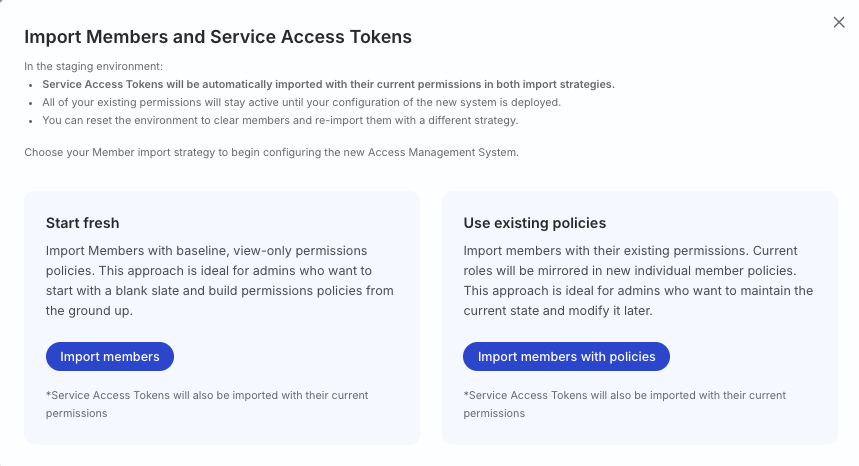
  2. Choose your import strategy.
StrategyImplicationsIdeal if
Start freshRudderStack imports members with baseline, view-only permissions.You want to start with a blank slate and build permissions policies from the ground up.
Use existing policiesRudderStack imports members with their existing permissions. Current user roles will be mirrored into the individual user’s Member Workspace Policy.You want to retain the existing user permissions as is, without having to modify them later.
info
Service Access Tokens will be automatically imported with their current permissions in both import strategies.
Migration strategy selection
  1. Click on Import members or Import members with policies to complete the import process.

Step 2: Configure policies

After importing members, you can review and adjust the imported policies before deploying them.

  1. Review and configure the Baseline Workspace Policy for your workspace.
Configure baseline workspace policy
  1. Create new groups and configure their workspace policies with specific permission sets.
Create groups
  1. Fine-tune users’ Member Workspace Policy as needed.
Configure member policies
success

You can reset the staging area at any time to revert any changes made to the policies and restart the migration process again.

See Reset staging area for more information.

Step 3: Deploy and enforce the new system

danger

The deployment is irreversible

Make sure you’ve reviewed and configured all permissions correctly before deploying. After deployment, the new Access Management system will be active and the legacy RBAC system will no longer be available.

  1. Review your staging area configuration to ensure all access policies are configured correctly.
  2. In the Migration Progress section, click Deploy.
  3. Confirm the deployment when prompted.

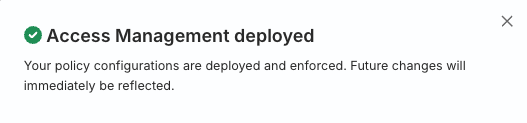
Once migration is complete, you will see the following banner:

Migration complete banner
success
After migration, you can leverage the new Access Management system to make any changes to the access policies — they will reflect in the workspace immediately.

Manage permissions after migration

Once migration is complete, you can:

See the Policies Overview guide for more information.

Reset staging area

The migration staging area lets you configure and preview permissions policies before deploying them, allowing you to:

  • Review how your current permissions map to the new system
  • Make changes to policies without affecting your current permissions

Clicking on Reset staging area clears all imported members and policy configurations, allowing you to restart the migration process from scratch.

Troubleshooting

IssueSolution
Import fails or does not completeTry resetting the staging area and import again
Deploy button is disabledMake sure the import step has completed successfully
Permissions don’t match expectations
  • Make sure you have selected the right import strategy. Reset the staging area and try again, if required
  • Review the How Migration Works guide to understand how permissions are mapped
  • You can also adjust member policies after deployment

See more

Questions? We're here to help.

Join the RudderStack Slack community or email us for support