
Manage Member Workspace Policy

Manage members by adding them to groups and customizing their individual workspace policy.

This guide explains how to manage members and configure their individual workspace policy for each workspace.

Overview

The Users tab in the Access Management section lets you:

Plan-wise limits

The number of members Admins can invite to a workspace depends on the RudderStack plan:

PlanMember limit
Free10 members per organization
Starter10 members per organization
GrowthUnlimited
EnterpriseUnlimited

See the Plan-wise Features guide for more details.

Configure member workspace policy

  1. Go to Settings > Access Management and click the Users tab.
  2. Select the member for which you want to configure the workspace policy.
  3. Under the Member Workspace Policies tab, select the workspace for which you want to configure the member policy.
Select workspace to configure user permissions
  1. Configure the workspace policy for the member.
info

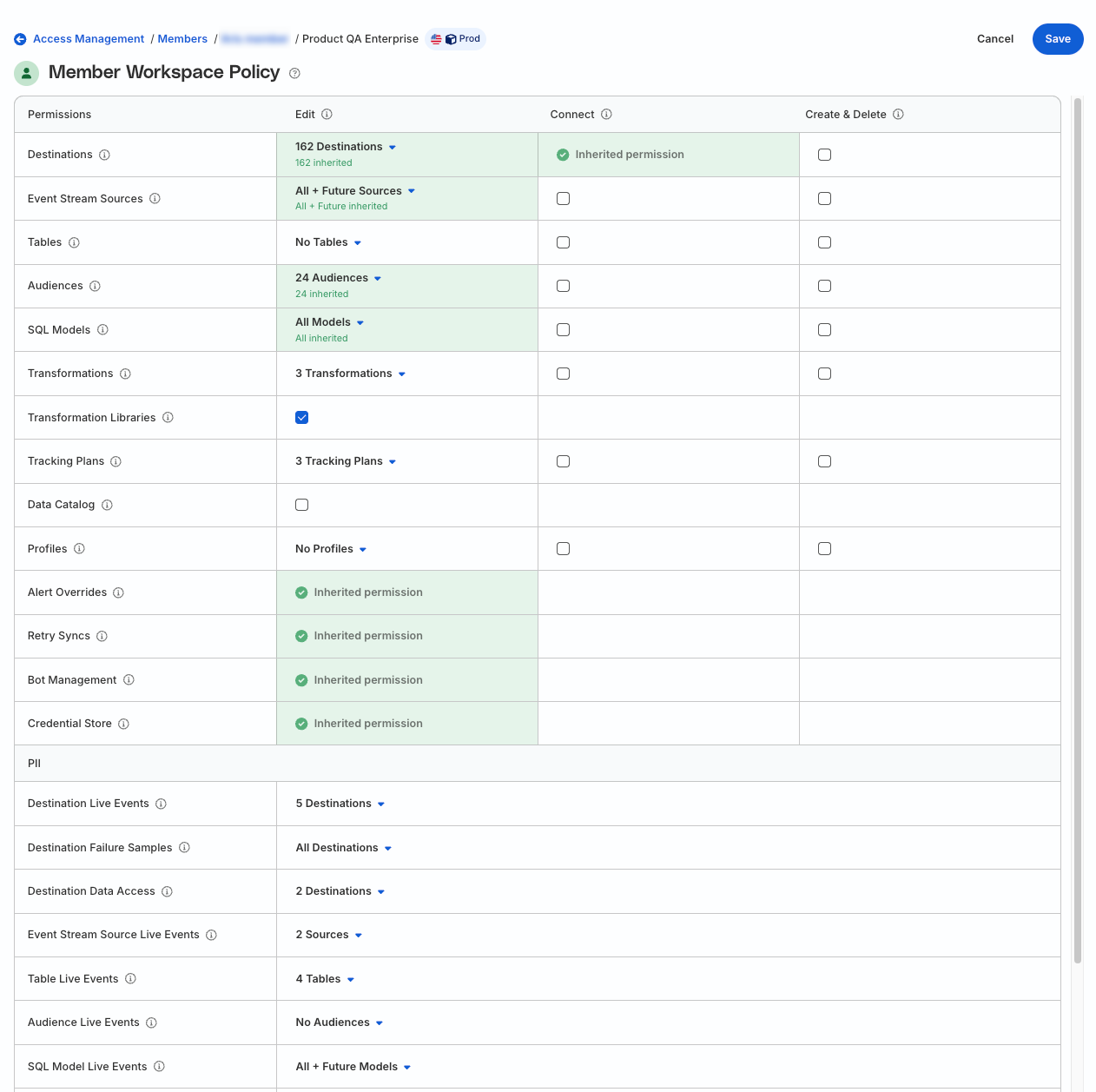
You may see some permissions with a green check mark. These indicate permissions inherited from the Baseline Workspace Policy and Group Workspace Policies of which the member is a part.

As all members inherit permissions from the Baseline Workspace Policy and any Group Policies, these inherited permissions cannot be changed or removed. However, you can configure additional permissions for the member.

  1. Click Save for the changes to take effect.

A sample member workspace policy is shown below:

Individual permissions policy

Manage group members

You can easily add or remove members from a group to simplify permissions management.

Add members to a group

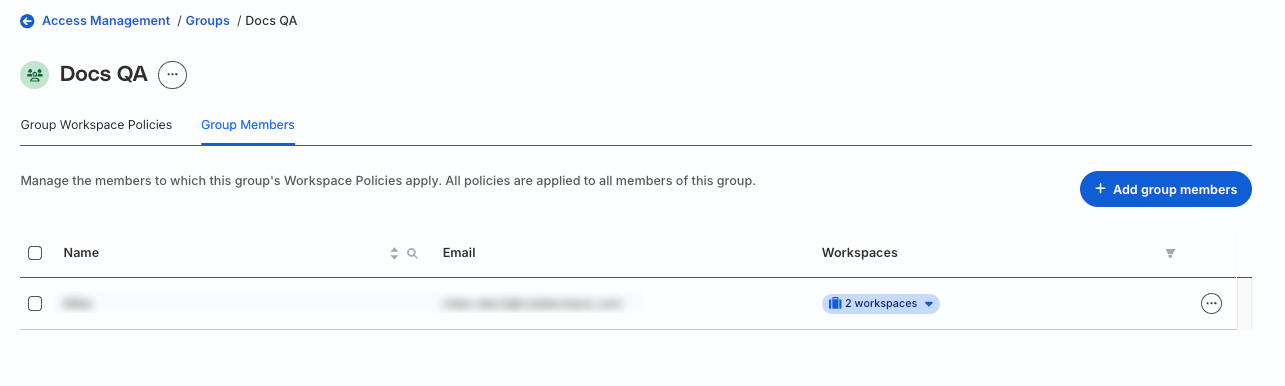
  1. In the Groups tab, click the group to which you want to add members.
  2. Go to the Group Members tab and click Add group members.
Add members to a group
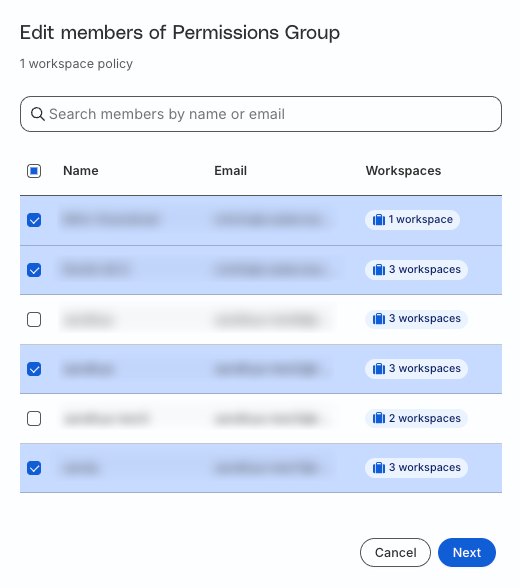
  1. Select the members to add to the group. Then, click Next.
Add members to a group
  1. In the confirmation window, click Add members to add the members to the group.

Remove members from a group

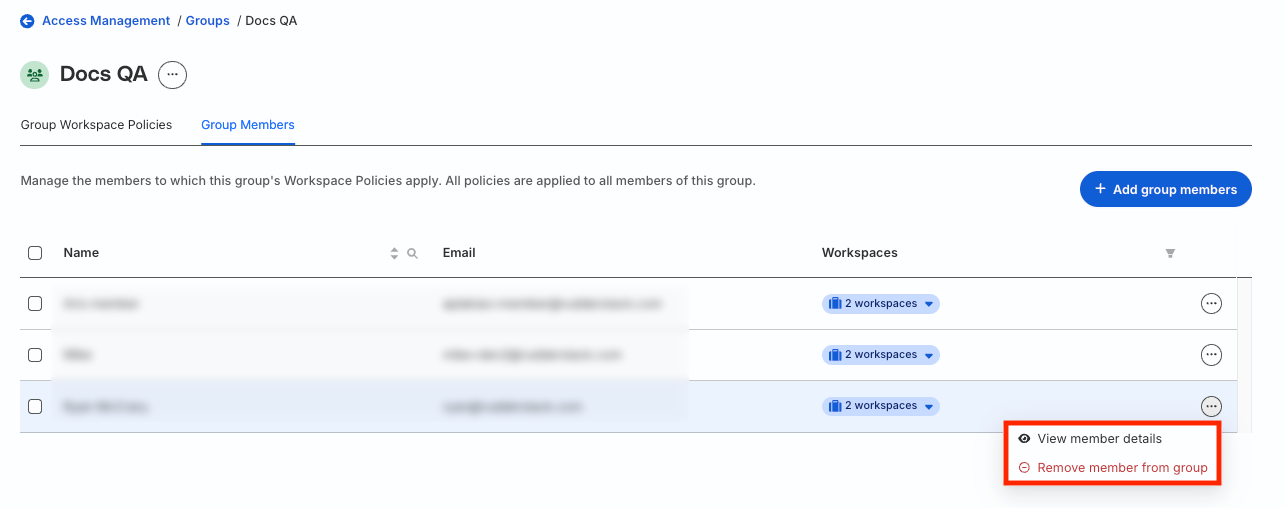
  1. In the Group Members tab, click the meatballs menu (...) next to the member. Edit members button.
  2. Click Remove member from group.
Remove member from group
  1. In the confirmation window, click Remove to complete removal.

Questions? We're here to help.

Join the RudderStack Slack community or email us for support