Manage Group Policies
- growth
- enterprise
2 minute read
This guide explains how to create groups and manage their policies for your RudderStack workspace.
Overview
The Groups tab lets you create groups, configure a group policy for each workspace, and add members to groups. All group members automatically inherit this workspace policy.
Groups enable the creation of custom roles (Data Engineers, Marketers, etc.) and streamline permissions configuration for large teams.
Plan-wise limits
The number of groups Admins can create in a workspace depends on the RudderStack plan — see Plan-wise Access Management Features guide for more details.
| Plan | Group limit |
|---|---|
| Free | Not available |
| Growth | Limit of 3 groups per organization |
| Enterprise | Unlimited groups |
Add a new group
- Go to Settings > Access Management.
- Under the Groups tab, click Create group.

- Assign a group name and description. Then, click Next.

- Specify the workspaces that the group will be a part of.
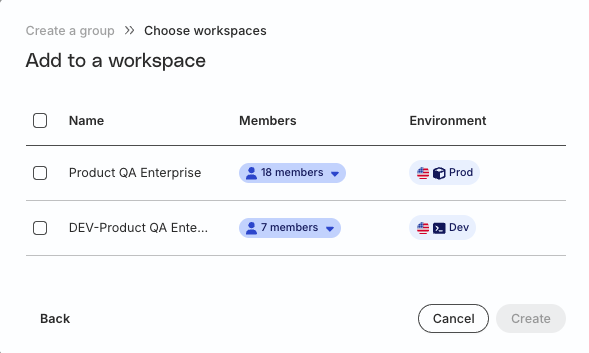
- Click Create to create the group.
Manage group members
hide_lastmod: true build: false _build: render: false list: false publishResources: false
You can easily add or remove members from a group to simplify permissions management.
Add members to a group
- In the Groups tab, click the group to which you want to add members.
- Go to the Group Members tab and click Add group members.
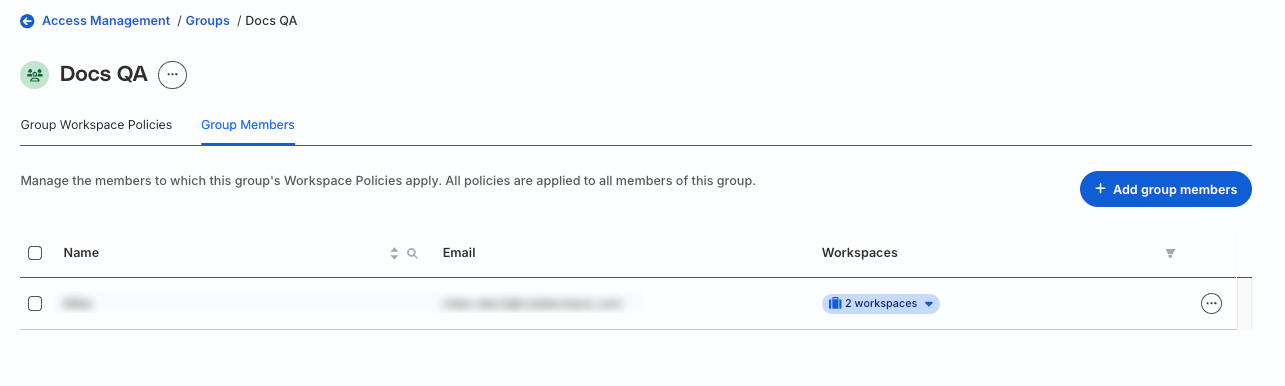
- Select the members to add to the group. Then, click Next.
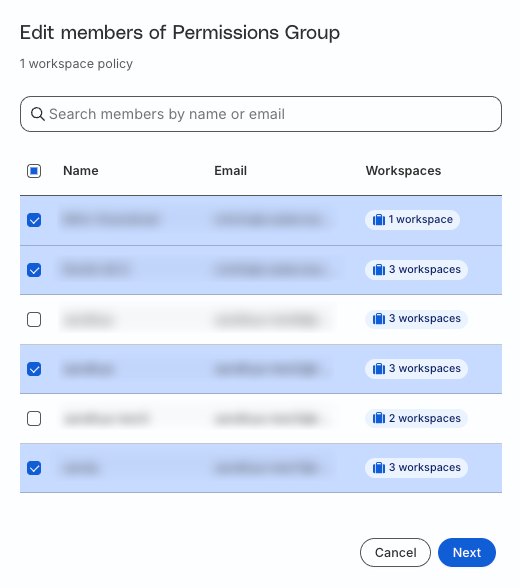
- In the confirmation window, click Add members to add the members to the group.
Remove members from a group
- In the Group Members tab, click the meatballs menu (
...) next to the member. Edit members button. - Click Remove member from group.
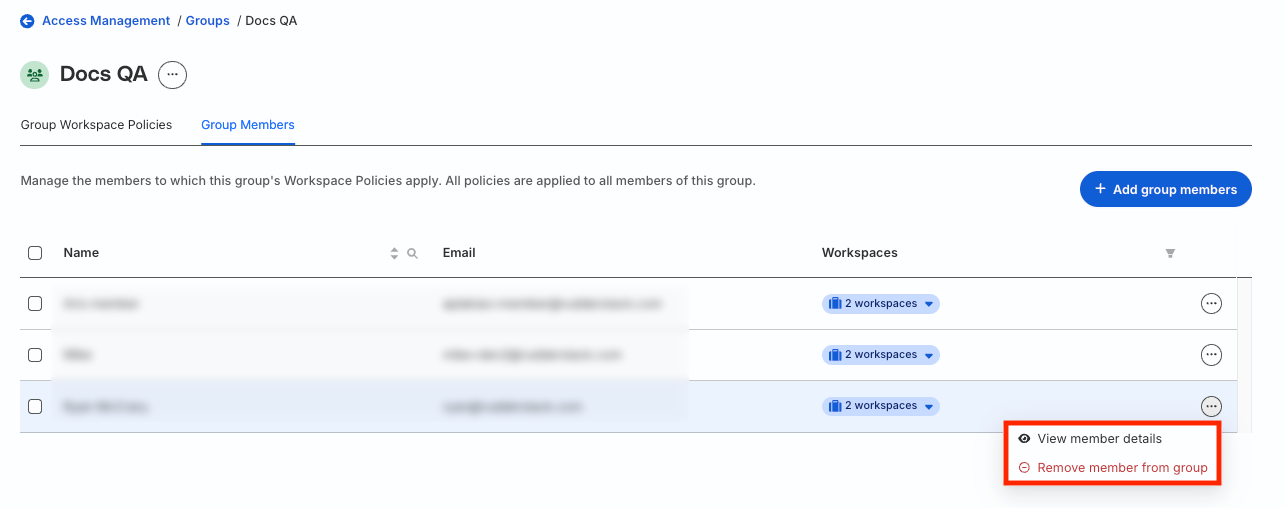
- In the confirmation window, click Remove to complete removal.
Configure group workspace policy
- Go to Settings > Access Management and click the Groups tab.
- Select the group for which you want to configure the policy.
- In the Group Workspace Policies tab, select the workspace for which you want to configure the group policy.

- Configure permissions for different resources and PII applicable to the group. All group members will automatically inherit these permissions.
You may see some permissions with a green check mark. These indicate permissions inherited from the Baseline Workspace Policy defined for the workspace.
As all groups inherit permissions from the baseline workspace policy, these inherited permissions cannot be changed or removed. However, you can configure additional permissions for the group.
- Click Save for the changes to take effect.
A sample group workspace policy is shown below:

