How to Map Identity Provider Groups to RudderStack Groups
- enterprise
4 minute read
SCIM group sync is in Public Beta and available in the Enterprise plan only. Contact RudderStack Support to enable it for your organization.
This guide explains how to link groups in your identity provider (IdP) to RudderStack groups, so that users get the right access when you add them to a group in your IdP.
Overview
Group mapping links an IdP group name to one or more RudderStack groups. Your IdP controls who is in each group, while workspaces and policies stay in RudderStack.
Group mapping works with:
- Okta and Azure Entra ID: Membership stays in sync through SCIM.
- Google Workspace: RudderStack doesn’t support SCIM with Google Workspace, so it assigns groups only at the user’s first sign-in. See Map identity provider groups in RudderStack for details.
How it works
- You create RudderStack groups and configure a workspace policy for each one.
- You make your IdP groups visible to RudderStack — by pushing them over SCIM, or by sending them in the SAML response for Google Workspace.
- You map each IdP group to the RudderStack groups it should grant.
- Users in the IdP group become members of the mapped RudderStack groups and inherit their policies.
One IdP group can map to several RudderStack groups, and several IdP groups can map to the same RudderStack group.
Example
The following mapping gives a set of users view-only access to a sandbox workspace:
| IdP group | RudderStack group | Group workspace policy |
|---|---|---|
sandbox-users | Sandbox View Only | View-only access to the sandbox workspace |
Anyone you add to sandbox-users in your IdP gets view-only access to that workspace. You don’t need to do anything in RudderStack for each new user.
Before you begin
Contact the RudderStack team to enable group mapping for your organization.
Ask an organization Admin to manage the mappings, or to give you the Admin role.
Create the RudderStack groups you want to map to, and configure their workspace policies.
Make your IdP groups available to RudderStack:
- Okta and Azure Entra ID: Push the groups over SCIM — see Push groups or Provision groups.
- Google Workspace: Send the
memberOfattribute in the SAML response — see Send group membership in the SAML response.
Add a mapping
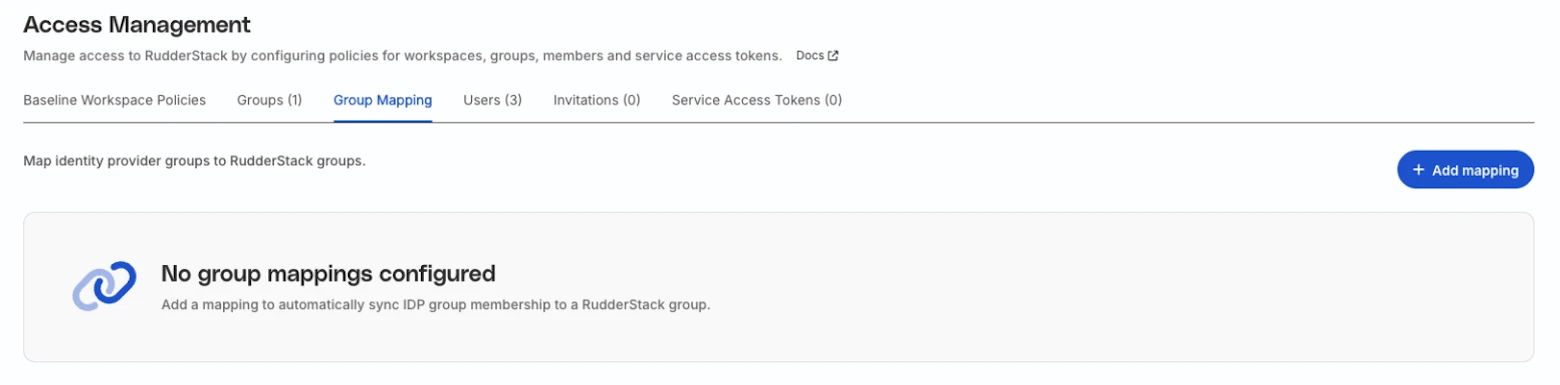
- Go to Settings > Access Management and click the Group Mapping tab.
- Click Add mapping.
- In the Add group mapping dialog, enter the IDP group name. It must match the group’s display name exactly as it appears in your IdP.
- Under RudderStack groups, select one or more groups.
- Click Add mapping.
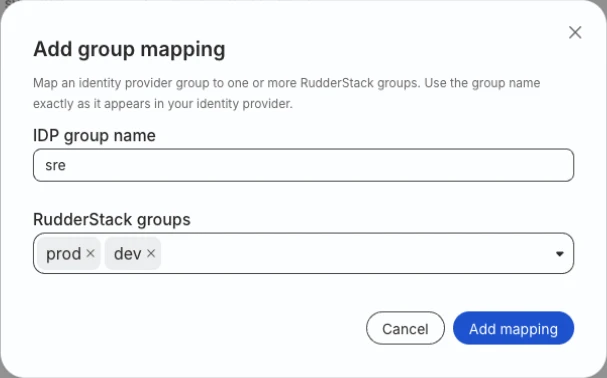
If the IdP group name is already mapped, RudderStack adds your selected groups to its existing ones.
Edit a mapping
- In the Group Mapping tab, click the edit icon next to the mapping.
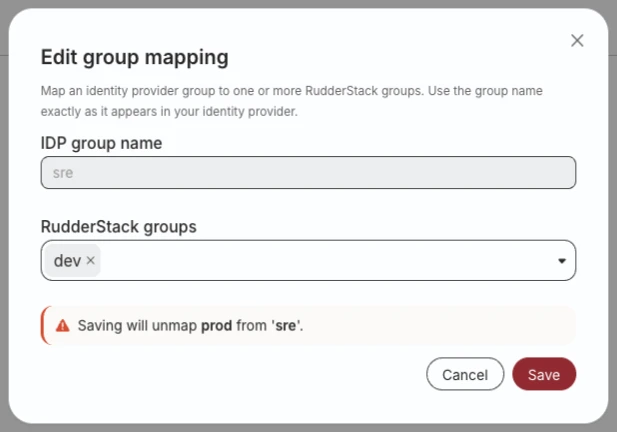
- Under RudderStack groups, add or remove groups. You can’t change the IDP group name.
- Click Save.
If you remove a group, the dialog shows a warning and the Save button turns red. For Okta and Azure Entra ID, saving removes members of the IdP group from the removed RudderStack group unless another of their IdP groups still maps to it. For Google Workspace, update existing users’ permissions manually in RudderStack; group mappings apply only at first sign-in.
Remove a mapping
- In the Group Mapping tab, click the delete icon next to the mapping.
- Review the RudderStack groups listed in the confirmation dialog.
- Click Remove.
For Okta and Azure Entra ID, members of the IdP group lose the listed RudderStack groups, except any that another of their IdP groups still maps to. For Google Workspace, removing a mapping affects future first sign-ins only; revoke existing users’ access manually in RudderStack.
How membership syncs
The following table applies to Okta and Azure Entra ID:
| Action | Result |
|---|---|
| A user joins a mapped IdP group | The user gets all the RudderStack groups mapped to that IdP group. |
| A user leaves an IdP group | The user loses its mapped RudderStack groups, except any that another of their IdP groups still maps to. |
| A user is deactivated in your IdP | The user is removed from every mapped RudderStack group in your organization. |
| You add, edit, or remove a mapping | The change applies straight away to the IdP group’s current members. |
| An IdP group is deleted | Its members lose the mapped RudderStack groups, except any that another of their IdP groups still maps to. The RudderStack group and the mapping stay, so the mapping applies again if you push a group with the same name. |
| You add a mapping before the IdP group is pushed | RudderStack saves the mapping and applies it when the group arrives. |
Example
Consider the following mappings:
| IdP group | RudderStack groups |
|---|---|
data-engineering | Prod Editors, Dev Editors |
analytics | Prod Viewers, Dev Editors |
A user in both IdP groups gets all three RudderStack groups. If they leave analytics, they lose Prod Viewers but keep Dev Editors, because data-engineering still maps to it.
See more
- Push groups: Push your Okta groups to RudderStack
- Provision groups: Provision your Azure Entra ID groups to RudderStack
- Map identity provider groups in RudderStack: Map your Google Workspace groups
- Manage Group Policies: Create groups and configure their policies
